GPTAssistant Extension
OpenAI Assistants API for Kodular & MIT App Inventor
Build powerful AI-powered apps with conversation memory, file search, code interpretation, and real-time streaming — all with visual blocks!

AI Assistants
Create custom AI personalities with specific instructions and capabilities.
Real-time Streaming
Get instant responses with live streaming, just like ChatGPT.
RAG / File Search
Upload documents and let AI answer questions from your files.
Installation
-
1
Download the Extension
Get the
.aixfile from your purchase. -
2
Import into Kodular/App Inventor
Go to Extensions → Import extension → Select the .aix file.
-
3
Add to Your Project
Drag GPTAssistant from the palette to your screen.
Quick Start
Follow these 6 steps to create a basic chat with your AI assistant. Each step shows the corresponding block you'll use in Kodular/App Inventor.
Initialize with your API key
Call this first to set up authentication with OpenAI. Get your key from platform.openai.com.

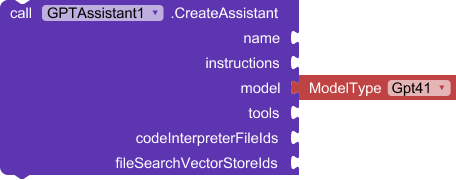
Create an Assistant with name & instructions
Define your AI's personality, capabilities, and the model to use. Handle the AssistantCreated event to get the assistant ID.

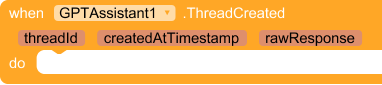
Create a Thread for conversation
A Thread holds the conversation history. Create one per chat session. Handle ThreadCreated to get the thread ID.

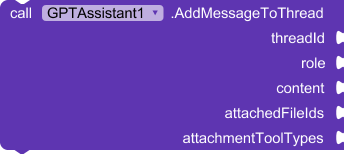
Add user messages to the Thread
Send the user's question or message to the thread. Role must be "user".

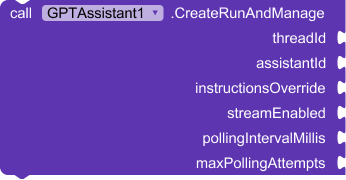
Run the Assistant (streaming or polling)
Execute the assistant on the thread. Use CreateRunAndManage with streaming enabled for real-time responses!
Handle response events
For streaming: use StreamTextDelta to show text as it arrives (typing effect). For polling: use RunCompletedAndMessagesFetched to get the full response.


- Store
assistantIdandthreadIdin TinyDB to reuse them across app sessions - Use streaming mode for a ChatGPT-like typing experience
- Always handle the ErrorOccurred event to show user-friendly error messages
Assistants
Assistants are AI entities with specific personalities, instructions, and tool capabilities. They persist across sessions and can be reused.
Threads & Messages
Threads represent conversations. Messages are added to threads and maintain context across the entire conversation history.
Runs & Streaming
A Run executes the Assistant on a Thread. You can choose between polling (wait for completion) or streaming (real-time token-by-token).
Polling Mode
Periodically check if the run is complete. Simpler but less interactive.
Streaming Mode
Receive tokens as they're generated. ChatGPT-like typing effect!
Files & Vector Stores
Upload files to OpenAI and create vector stores for RAG (Retrieval-Augmented Generation). This enables your Assistant to search and answer questions from your documents.
Methods Reference
GPTAssistant provides 17 methods for interacting with the OpenAI Assistants API.
Events Reference
GPTAssistant fires 33 events to notify you of results, status changes, and errors.